Introduction
As an admin, you decide the order in which channels appear in your intranet. This order serves as the default for all users, so everyone uses the same layout.
In this article, you will learn how to change the order of channels.
Note:
Changing the channel order is only available for admins.
Changing the channel order is only available for admins.
Changing the order of channels
The channels in your intranet are displayed in an order that you, as admin, define. Follow these steps to adjust the default order of channels:
- Hover your mouse over your name in the navigation bar and click Admin. You are now in the Admin panel.
- In the left-hand sidebar, click Configuration > Channels. You will now see an overview of all existing channels in the intranet.
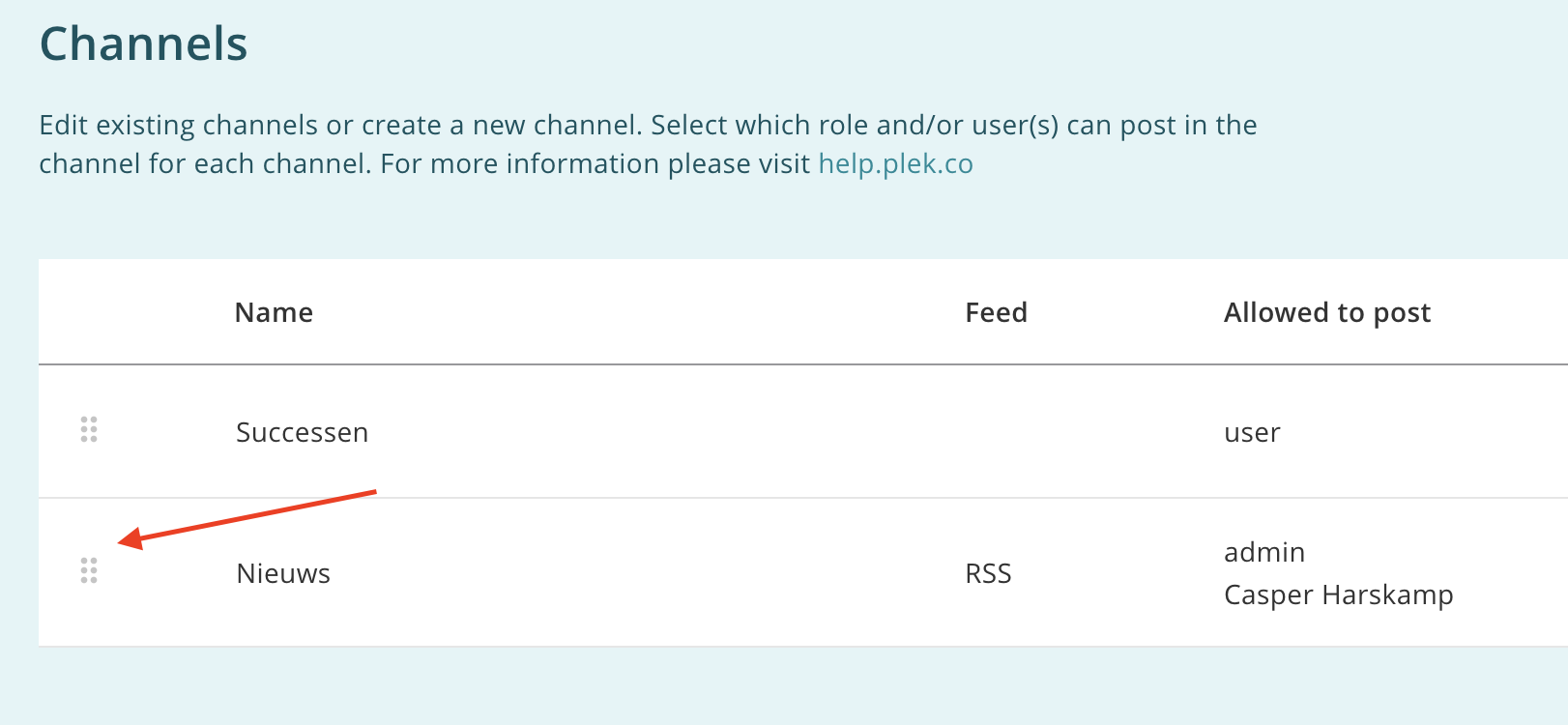
- Click on a channel, hold the mouse button, and drag the channel up or down.
- Release the mouse button at the desired position. The new order is saved automatically.
Troubleshooting
I cannot find the Channels option in the Admin panel
- Check whether you have admin rights. Only admins see the Channels option in the sidebar.
- Refresh the page if the sidebar does not fully load.
The new order is not being saved
- Check your internet connection. The order is saved automatically the moment you release the channel.
- Refresh the page and drag the channel to the desired position again.